Pages

Tuesday, September 13, 2016

Chrome Browser

I remember when browsers were simply the place where you entered a web address but today they create digital magic as they streamline the work that we do. The Google Chrome browser is a powerful tool that is underutilized if you are only using it as a tool to reach your final destination on the World Wide Web. To write about all that Chrome can do for you would take a series of books so we will be highlighting different tools throughout the year. For this post, we I will be highlighting a few tricks that can make your life simpler (and that of your students as well!)
Multiple Google Profiles
Many educators and students have personal Google accounts as well as their GCISD Google account. There are times where I need to switch between my accounts without logging out of one account and into the other. I also prefer to have different bookmarks for each account and to keep these two worlds separate. You can create multiple Chrome profiles and easily switch between accounts without having to sign out of either account!  Below is a screencast (created by Screencasitfy extension that we blogged about last week) on creating multiple profiles.

Pin a Tab


There are tabs that I navigate to multiple times a day as well as tabs that are important to the project of the day. There have been many times where I have accidentally closed out of an important tab and had to go to the effort to navigate back to the specific tab I needed. In the Chrome browser, you can pin a tab that you want to ensure you do not close accidentally or that you will use frequently throughout your day. When you pin a tab, it moves to the left of all tabs and the “x” to close the tab disappears preventing you from closing it unintentionally.
Pin a tab graphic.png
Below is a screencast to step you through pinning tabs in your Chrome browser.


Stay tuned for future posts on additional Chrome features!


Saturday, August 6, 2016

Create Google Classroom Headers With Canva

When you create a class in Google Classroom, Google automatically creates a header for your Classroom.  Once you have multiple classrooms, it is beneficial to be able to quickly differentiate between your classes by the image.  You can change the image to one of Google's themes.

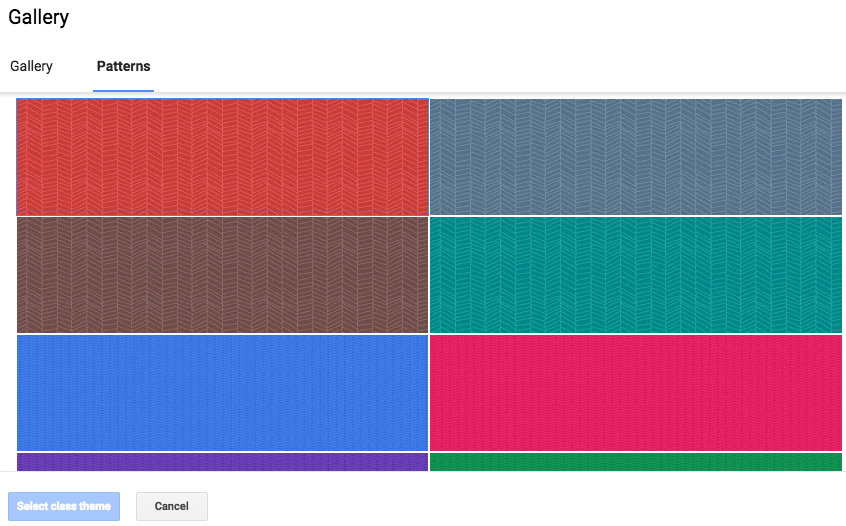
In addition to selecting a theme, you can also choose from colored patterns.  If you have a class color, this may be the quickest way to distinguish your classrooms.


Sometimes, though, you may want to be creative and design our own.  This is when Canva comes to the rescue!  With Canva, you can design your own custom theme image.  First, you will want to select "Use Custom Dimensions" and select 800 x 200 px
Once your dimensions have been set, you are ready to create!  You can choose a layout and upload multiple pictures to create a class collage Theme Image, choose background colors, select cool font themes, the options seem almost unlimited! Once your creation is complete and downloaded as an image, you are ready to shift to Google Classroom to set your Theme Image.  Simply select "Upload photo" and navigate to where it is saved on your computer.

VoilĂ !  You have a new custom Theme Image for your Google Classroom!


If you are interested seeing a how a custom image was created in Canva and posted to a CMS Google classroom from start to finish in just 3 minutes, watch this tutorial video!  


Happy creating!

Monday, April 27, 2015

Badges

It doesn't take much to turn on my competitiveness, so the badges on the GCISD Virtual Voyage has me excited for learning, blogging and earning my badges!  Thank you GCISD Instructional coaches for giving us this fun way to follow our learning progress!  Wouldn't this be a fun component to add to your students' classroom learning blogs?

Feedly

Let me just start by saying, "I miss Google Reader!"  I am a Google girl and I loved having the reader as part of my Google app family.  To be honest, since its demise, I have not been near as faithful in reading blog posts.

As part of the GCISD, I set up a Feedly account.  You can read your Feedly at www.feedly.com or through the app.  Adding blogs to follow is super easy and you can group them by categories.  To setup a Feedly account, all you have to do is go to the website and sign in with your Google account.

When you first login to Feedly, you can choose some categories that you are interested in following, or you can go straight to adding blogs you know you want to follow. On the left column, simply click on "Add Content"

Next, paste the link to a blog that you would like to follow.

Click on the link and then "+feedly"


Once added, look to the left and select a category to classify this blog.  Click "Add".


You are now ready to start following your blogs. Your feedly groups your feed by your self-selected categories!


Monday, March 2, 2015

TweetDeck at CMS

Organizing Your Tweeter Feed with TweetDeck

Is it a challenge to keep up with everything or everyone you want to follow on Twitter?  Then check out TweetDeck at https://tweetdeck.twitter.com/ On TweetDeck, you can create multiple columns for each of the type of news/tweets you want to keep up with.  To stay current with things happening in our classrooms, consider adding columns for the following:

#CMSColts This hashtag is used to share what is going on in our classrooms and campus.  To create a column for #CMSColts follow these steps:


CMS Tweets This column would be a list column for all the teachers tweeting at CMS.  You can find this list of Twitter handles at http://goo.gl/w4GoZ0 To add a column of CMS Tweeters, follow the instructions below.


  1. Screenshot 2015-03-02 23.19.38.png
2.  
3. Select “+Create list”
4.  
5.  Screenshot 2015-03-02 22.50.41.pngEnter Twitter handle to add to list.
Screenshot 2015-03-02 22.51.01.png
6.  Cick “+” to add to your list

Wednesday, February 25, 2015

Google Classroom Theme Image + Canva

I have felt fairly limited with the options for the Theme Image in my Google Classroom.  However, that all changed today!  Google listened to feedback and made some great changes.  First, they added additional themes; there are now 50 Classroom Theme Images to choose from.


In addition to adding more themes, you can now also select colored patterns.  If you have a class color, this may be the quickest way to distinguish your classrooms.


Sometimes, though, we want to be creative and design our own.  This is when Canva comes to the rescue!  With Canva, you can design your own custom theme image.  First, you will want to select "Use Custom Dimensions" and select 800 x 200 px
Once your dimensions have been set, you are ready to create!  You can choose a layout and upload multiple pictures to create a class collage Theme Image, choose background colors, select cool font themes, the options seem almost unlimited! Once your creation is complete and downloaded as an image, you are ready to shift to Google Classroom to set your Theme Image.  Simply select "Upload photo" and navigate to where it is saved on your computer.

VoilĂ !  You have a new custom Theme Image for your Google Classroom!


If you are interested in learning more and seeing a custom image in Canva created and posted to Google classroom from start to finish in just 3 minutes, watch this tutorial video!  


Happy creating!

Tuesday, February 24, 2015

Google Image Search


The power of Google just never ceases to amaze me.  I would love to spend time with the brains that continue to dream of new things.  A new to me tool is what I call reverse searching with Google Images.  

The above dress showed up in my Facebook news feed as a Nordstrom ad.  I loved the colors on it and clicked on the ad, but couldn't find the dress.  So, Google Image Search to the rescue!  I simply took a screen shot (on a Mac, it is command/shift/4 to select a certain portion of the screen) and then went to www.google.com and clicked on images.  
Click on the camera icon and then select whether you would like to search for an image by URL or upload your own.  Since I took a screen shot, I uploaded my own picture!

Then the magic happens!


If you are the type who need to see the clicking in action, you can watch a screencast of this search in action!


Happy searching!